

A change order log is the master register of every contract change on a project. It captures where each change came from, what it costs, how it moves the schedule, and where it stands in approval. Grab the free Excel and CSV template below, drop in your project details, and you'll be able to log a change order, track its status, and pull a clean summary for your next pay application by the end of this page.
TL;DR:
- Keeping pending and approved change costs separate prevents inflation of the contract total and maintains the log’s credibility.
- Assigning a single owner to maintain the log and logging changes immediately on notice reduces errors and dispute risks.
- Attaching source documents to each change order entry and reviewing pending exposures weekly helps ensure timely notice compliance and traceability.
- Most disputes originate from late logging, mixing statuses, or missing document links; fixing these habits reduces legal exposure.
- When project volume exceeds spreadsheet capacity, adopting an automated system with timestamped approvals and cross-project visibility is essential.
Table of Contents
- Download the Change Order Log Template (Excel & CSV)
- What Each Column in the Log Means
- How to Keep the Log Trusted Week After Week
- The Mistakes That Turn a Log Into a Liability
- When a Spreadsheet Stops Being Enough
- Why Documentation Discipline Pays Off Faster Than People Expect
- A Faster Way to Handle Scope Changes Than a Spreadsheet
- Where This Guidance Comes From
- Sources
- FAQ
Download the Change Order Log Template (Excel & CSV)
Both formats track the same fields. The difference is in what you do with them next.
- Excel carries built-in formulas for running contract totals, pending exposure, and days-open aging. Use this version if you plan to work directly in the sheet.
- CSV strips out formatting and formulas, which makes it easier to import into Procore, Buildertrend, or a project database without breaking anything on the way in.
Before you enter real data, clear the three example rows and reset the "Original Contract Value" cell to your actual signed contract amount. Everything else in the sheet calculates off that number.
Here's one example row to confirm your fields map correctly: Change #003, Source: RFI 014, Initiated By: Owner, Description: "Add exterior lighting package," Pending Exposure: $8,400, Status: Pending, Days Open: 6. Once approved, that $8,400 moves out of pending and into the approved cost column, and the running contract total updates automatically.
What Each Column in the Log Means
A change order log only stays trustworthy if every field means the same thing to every person who touches it. Templates like the one from Jet group fields into functional sets rather than one long undifferentiated row, and that grouping is what makes the sheet usable under pressure.
Identifiers and traceability
- Change #: A sequential number, never reused, even for rejected items.
- Source: The document that triggered the change, such as an RFI number, a field directive, or a verbal instruction later confirmed in writing.
- Initiated By: Owner, architect, subcontractor, or field condition.
Dates and aging
- Date Identified, Pricing Requested, Pricing Received, and Decision Date track how long a change has been sitting unresolved. Days-open alone tells you little; paired with pending exposure and the responsible party, it tells you which items need attention this week.
Financial exposure and schedule
- Pending Exposure: The estimated cost of a change before it's approved. This number stays out of your contract total.
- Approved Cost: The dollar amount once signed off, which does roll into the running total.
- Running Contract Total: Original contract value plus every approved change order to date. A step-by-step breakdown from Procore confirms this same formula: original contract, plus prior approved COs, plus the current one.
- Schedule Impact (Days): Calendar days added or removed from the completion date.
Ownership and status
- Status: Draft, Pending, Approved, Rejected, or Closed.
- Linked Documents: File links or references to RFIs, cost proposals, and photos.
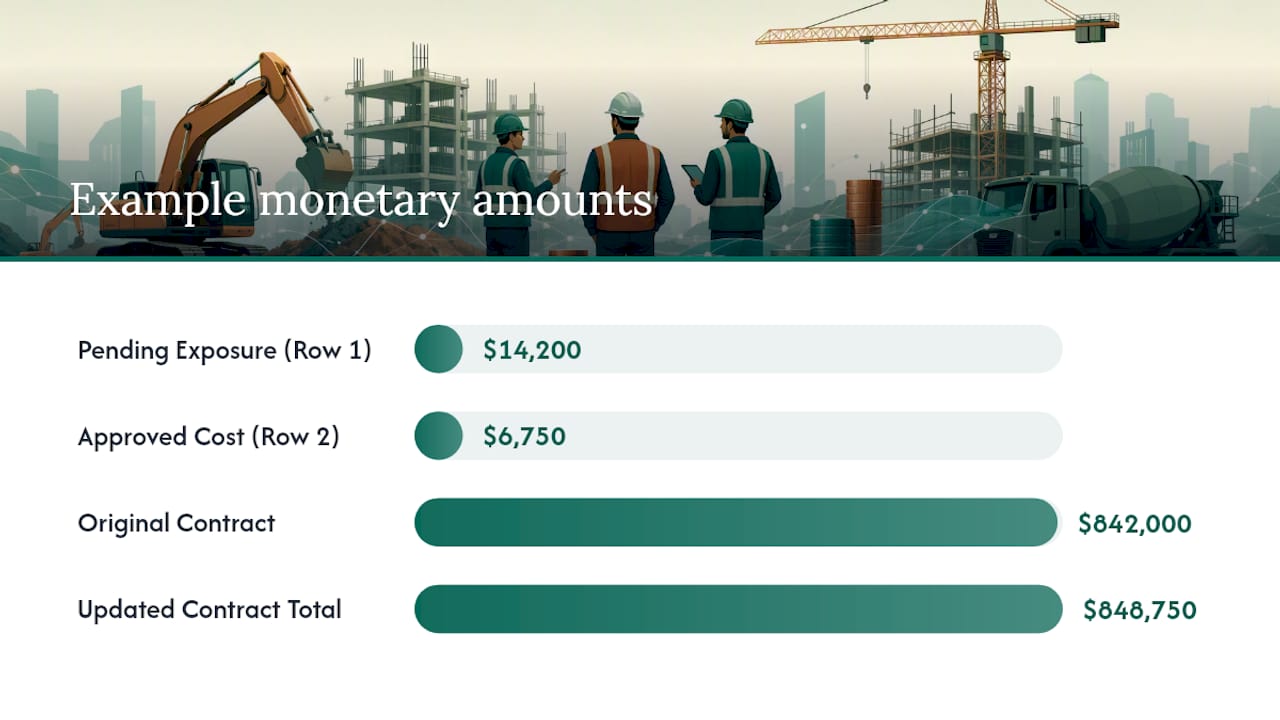
Example: Row 1 shows Change #012, Pending, $14,200 exposure, contract total unchanged. Row 2 shows Change #009, Approved, $6,750 approved cost, contract total updated from $842,000 to $848,750.
How to Keep the Log Trusted Week After Week
A change order log that nobody maintains consistently becomes a liability instead of a record. Set these rules before your first real entry, not after your first dispute.
- Assign one owner. Pick a project engineer or PM to be the sole editor. Superintendents and subs can submit information, but only one person edits the master file.
- Log on notice, not on approval. The moment you receive an RFI or field directive that smells like extra work, add a row with Status: Pending and an estimated exposure figure. Waiting until pricing is finalized is how changes get forgotten.
- Never blend pending and approved totals. Your running contract value should only reflect signed, approved changes. This distinction is what separates a defensible log from a guess, and it's the specific practice AECify's change order management guide calls out as the single most common failure point.
- Attach source documents to every row. Link the RFI, cost proposal, or photo directly in the log, not in a separate folder someone has to hunt down later.
- Run a weekly exposure review. Fifteen minutes, every week, scanning days-open and pending exposure together catches items before they blow past contractual notice windows.
- Retain everything. Government projects commonly require retaining change order records for 3 to 10 years, and some legal exposure runs longer. Save the executed CO with your permanent project file, not just in the log.
Pro Tip: Before every pay application cycle, run a validation pass: every "Approved" row needs a signed document link, and every "Pending" row needs a decision date. If either is missing, fix it before the numbers go to the owner.
The Mistakes That Turn a Log Into a Liability
Most change order disputes trace back to one of four habits, and all four are fixable without new software.
- Logging late. Teams wait for a signed change order before writing anything down, which means informal verbal directives never get captured. Fix it by logging on notice with a placeholder pending row the same day you hear about the change.
- Mixing pending with approved. Someone pulls the running contract total for a pay application and it includes unsigned estimates. Keep the columns physically separate and walk your pay-app preparer through the difference once, out loud.
- Missing notice deadlines. Many contracts require written notice of a change within a set number of days. A required decision date field with a simple color flag catches this before it becomes a forfeited claim.
- Weak traceability. A change order with no linked RFI or cost proposal is nearly impossible to defend in a dispute. AECify's guidance is blunt about this: attaching the decision trail at the time of entry, not after the fact, is what actually prevents disputes.
Pro Tip: If a change order shows up with no linked document, treat that as a red flag, not a formatting gap. It usually means the paper trail doesn't exist yet, and you need it before you price the work.
When a Spreadsheet Stops Being Enough
A spreadsheet works fine until it doesn't, and the signals are consistent: you're processing more than a handful of change orders a month, you need visibility across multiple projects at once, or you keep missing notice windows because nobody flagged the deadline in time.
At that point, look for a system with:
- Immutable, timestamped approval records that can't be edited after signing.
- Automated notice-window reminders tied to contract terms.
- Direct linkages between change orders, RFIs, and the project schedule.
- Cross-project dashboards showing total pending exposure at a glance.
Migrating is straightforward: export your current log, map its columns to the new tool's fields, pilot it on one active project, then train the team before rolling it out further.
Why Documentation Discipline Pays Off Faster Than People Expect
Teams that log a change the day it's identified, not the day it's signed, recover far more of their entitlement. Estimating gets sharper too, since a maintained log becomes a record of what actually happens on similar jobs, not just what was quoted. This is the exact gap Stria was built to close for freelancers on fixed-price work: forward the client email, get it checked against the original scope, and walk away with a signed, tamper-evident approval instead of a hopeful guess.
— Team Stria
A Faster Way to Handle Scope Changes Than a Spreadsheet
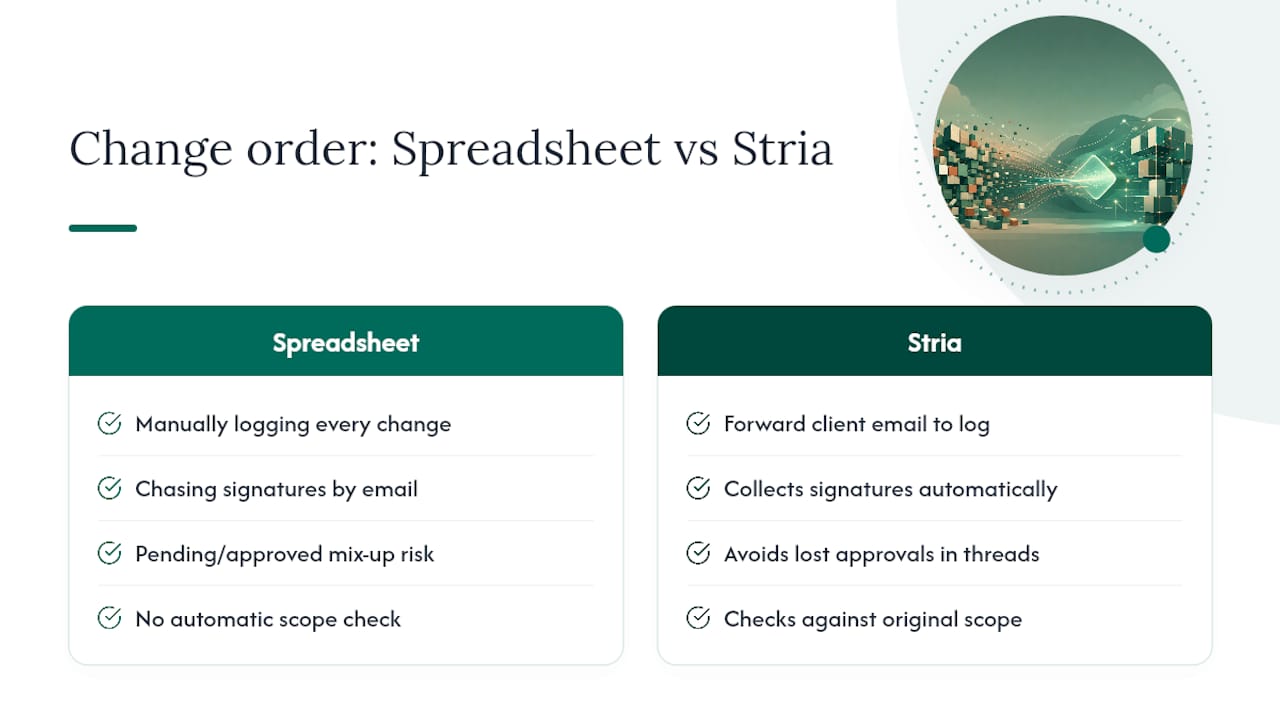
Stria is the alternative to running your change order process by hand in Excel. Instead of manually logging every scope change, chasing signatures, and hoping your pending-versus-approved columns never get crossed, you forward the client's email or message and Stria checks it against your original agreed scope automatically.
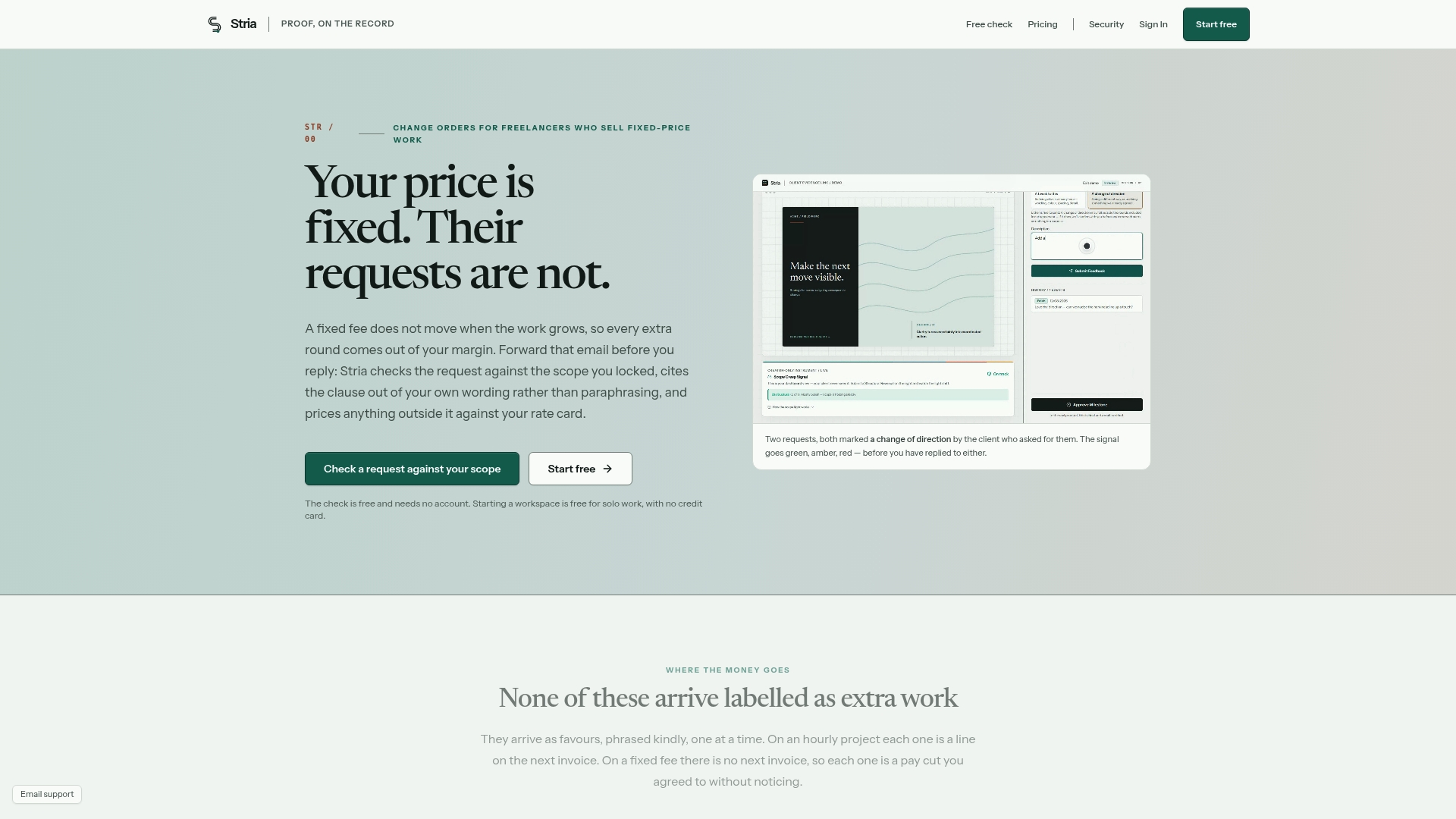
It flags anything outside that scope, prices it against your own rate card, generates a change order, and collects an email-verified signature, storing a tamper-evident record you can export as a PDF ledger. That's the version of the log this article just walked you through, minus the manual entry and the risk of an approval getting lost in a thread of email replies.
If you're a freelancer or small agency juggling more than one or two fixed-price contracts, this is usually the point where a spreadsheet stops being enough. Stria's Freelancer Solo plan runs $19 a month, or $190 billed annually, with a free plan available if you want to test the workflow first. Check out the full feature breakdown and start protecting your next scope change before you do the work for free.
Where This Guidance Comes From
The field definitions, example values, and formulas in this guide draw on established construction industry templates and public-agency procedures.
- DGS Change Order Guidelines — Maryland Department of General Services for public-project routing and approval thresholds.
- Jet for column structure and prioritization logic.
- Free Change Order Log Template — Archdesk for the core register definition and running-total mechanics.
- How Change Orders Work in Construction — Procore for retention rules and revised contract value formulas.
Sources
- DGS Change Order Guidelines — Maryland Department of General Services
- Jet
- Free Change Order Log Template for Construction (Excel & CSV) — Archdesk
FAQ
What Is a Change Log for a Document?
A change log is a running record of edits made to any document, showing what changed, who made the change, and when. In construction, the change order log is the specific version of this concept applied to contract modifications, tracking cost, schedule, and approval status for each one.
How Do You Track Change Orders?
Track change orders by logging each one the moment you receive notice, before pricing or approval is final, using a shared register with fields for source, pending exposure, approved cost, and status. Update the log as each item moves from Draft to Pending to Approved, and link every entry to its originating RFI or cost proposal for traceability.
What's the Difference Between an RFI and a Change Order?
An RFI, or request for information, is a question raised to clarify design intent or resolve a conflict in the drawings, and it doesn't cost anything by itself. A change order is the formal, priced document that follows when the answer to that RFI requires added scope, cost, or schedule time, and it becomes the "Source" reference in your log.
How Do I Build a Change Log in Excel?
Set up columns for change number, source document, dates, pending exposure, approved cost, running contract total, schedule impact, and status, then use SUMIF formulas to auto-calculate totals as statuses update. Stria's downloadable template above already has this structure built in, with example rows you can clear and replace with your own project data.
Do I Need a Change Order Log on Every Project?
Yes, even small fixed-price jobs benefit from logging scope changes, since undocumented extra work is one of the most common sources of unpaid labor for freelancers and small contractors. Public projects often add specific form and routing requirements on top of the basic log, as outlined in Maryland's DGS change order guidelines.